
Texttospeechai · text to speech ai

Turn written words into natural-sounding voice

iPhone voice workflows

text to speech ai examples iphone users can try

text to speech ai examples iphone users can adapt for accessibility, study, notes, and short-form video. Start with a clear script, choose a suitable delivery, and review the result before sharing it.

Review before sharing
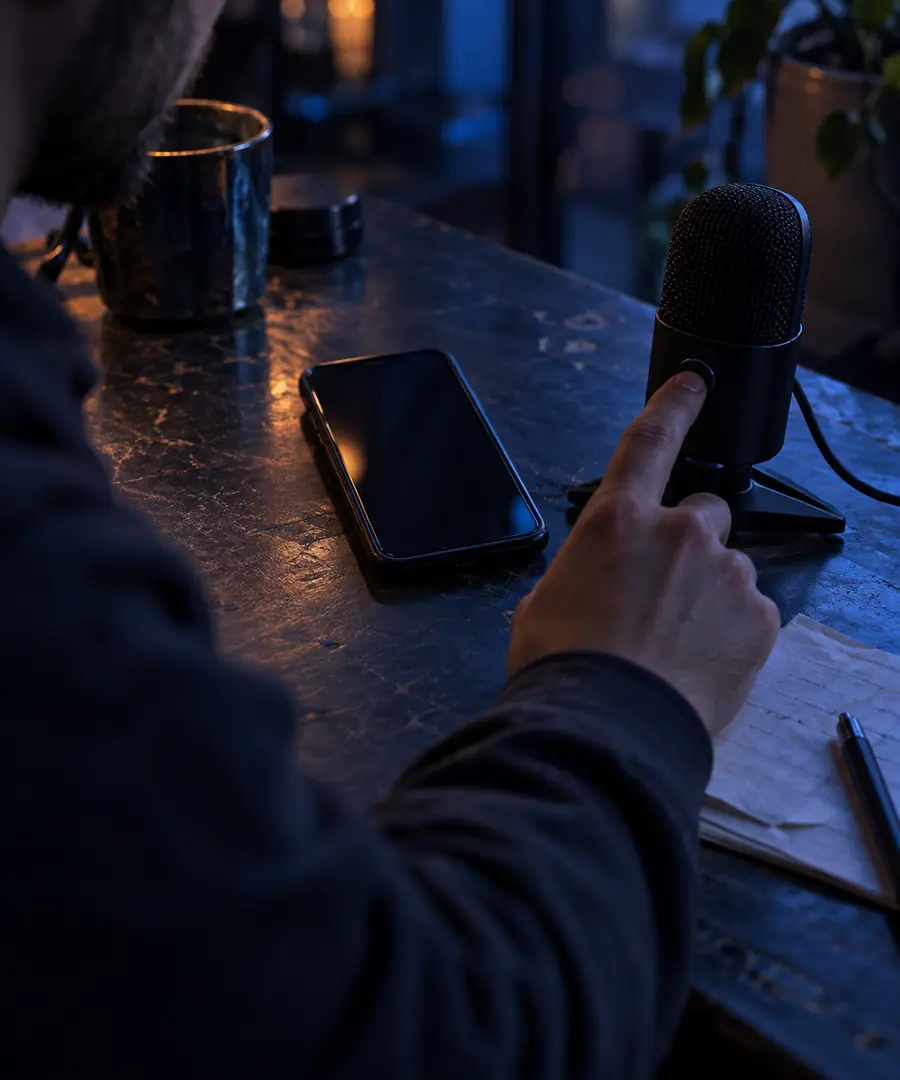
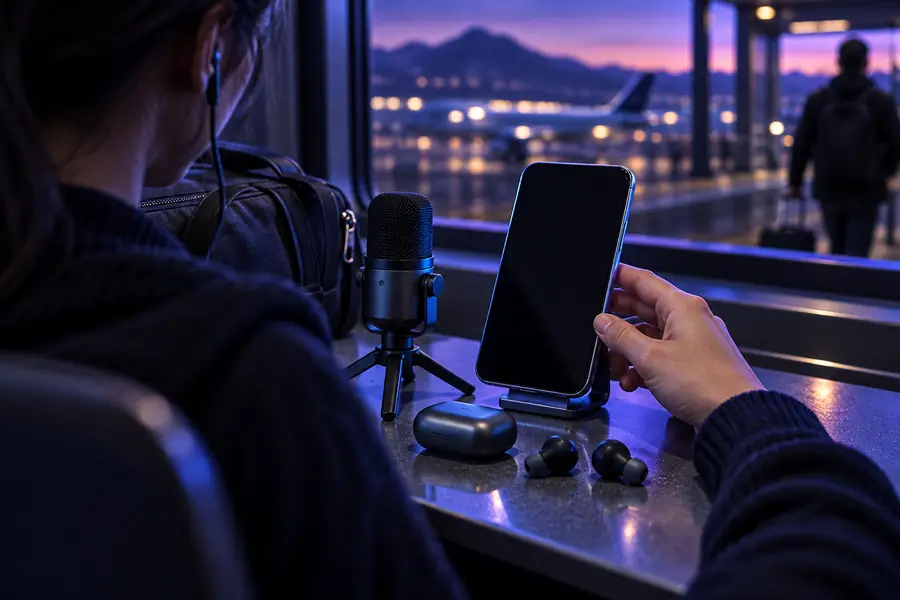
Voiceover creation workspace for an iPhone content workflow

Related guides

Choose the right voice workflow

These related guides cover adjacent ways to convert writing into usable spoken audio or shape a distinct delivery.

Three workflows

The iPhone voiceover pain

Typing on a small screen is convenient, but turning rough notes into a natural, useful voiceover can take several passes. These workflows keep the process focused.

  1. 1

    Draft for the ear

    Write short sentences, place the key idea first, and remove punctuation that could create awkward pauses. Read the script once before generating audio.

  2. 2

    Generate one focused take

    Use a specific prompt that names the audience, mood, length, and purpose. For an iPhone video, describe where the voiceover will begin and end.

  3. 3

    Review on the device

    Listen through headphones and the phone speaker. Check pace, pronunciation, transitions, and whether the spoken version still makes sense without the written script.

Workflow snapshot

Three checks before publishing

The most useful measures here are review checkpoints rather than claims about speed or output limits.

Script, voice, and device review
3 checks
Headphones and phone-speaker playback
2 listens
A clear audience action or takeaway
1 purpose

Output comparison

Example output: typed text to spoken audio

A good iPhone voiceover keeps the original meaning while making the delivery easier to follow. Compare the starting script with a more speakable version.

Raw phone note
Voiceover-ready script

Opening

Raw phone note

Today I want to talk about studying better.

Voiceover-ready script

Here is one simple way to study better today.

Sentence length

Raw phone note

Several ideas are packed into one long sentence.

Voiceover-ready script

Each idea gets its own short sentence.

Punctuation

Raw phone note

Commas and fragments create uneven pauses.

Voiceover-ready script

Punctuation marks natural breathing points.

Audience

Raw phone note

The listener is not clearly identified.

Voiceover-ready script

The script names the viewer or learner directly.

Call to action

Raw phone note

The next step is implied.

Voiceover-ready script

The final line gives one clear next step.

Review

Raw phone note

The note is judged mainly by how it looks.

Voiceover-ready script

The script is judged by how it sounds on an iPhone.

Listen and revise

Before and after the voiceover

The visual comparison represents the handoff from an unstructured note to a script prepared for spoken delivery.

Unedited iPhone voiceover note Before: rough note
Polished voiceover example for short-form content After: reviewed voiceover
The goal is clearer listening, not merely more words.

Scenario notes

Compliance notes for common scenarios

The right workflow depends on who is speaking, who is listening, and whether the audio is private, educational, or public.

Accessibility reader

A user wants written instructions or a long note spoken aloud while using an iPhone.

Keep sentences direct, confirm names and numbers, and give the listener control over replay and pace. The text to speech converter guide is useful when the source is already finalized.

text to speech converter

Student

A learner turns study notes into a short spoken review for listening during a commute or revision session.

Separate definitions from examples, avoid unsupported claims, and compare the audio with the original notes before relying on it. A text to speech ai tutorial free workflow can help structure the process.

text to speech ai tutorial free

Short-form creator

A creator prepares narration for an iPhone video, reel, or tutorial where the voice must match the visual pace.

Write to the edit, leave room for transitions, and review pronunciation of names and specialist terms. The text to speech gangster voice guide offers a contrasting character-voice use case.

text to speech gangster voice

Small business team

A team turns a product note into a concise explainer for internal or customer-facing mobile content.

Get approval for the wording, avoid presenting generated narration as a real person, and check that the final script matches the approved message.

text to speech converter

Try a focused prompt

Turn an iPhone script into a clear voiceover

Bring a short idea, study note, or video script and describe the audience and delivery you want. Review the result on your phone before publishing or sending it onward.

Create my voiceover
  • Use one purpose per prompt
  • Name the audience and tone
  • Listen before you share

Scenario FAQ

Scenario FAQ

Common starting points include reading study notes aloud, creating narration for a short video, and making written instructions easier to listen to. Begin with a short script so pronunciation and pacing are easy to review.

Yes, an AI voiceover can be prepared for mobile video work when the script, pacing, and final audio fit the project. Listen to the result alongside the visuals and check any names, numbers, or technical terms before publishing.

Use short sentences, clear punctuation, and one idea per line or paragraph. Add the intended audience, tone, and purpose to your prompt, then revise anything that sounds unnatural when played through the phone speaker.

It can support listening to written material, instructions, or study notes, but it should not replace a user's preferred accessibility settings or assistive tools. Review pronunciation and meaning, especially for names, abbreviations, and numbers.

Check the wording, pronunciation, pacing, and whether the audio accurately represents the source text. Also confirm that you have permission to use any private, copyrighted, or recognizable voice material included in the project.

Start creating
Start creating